Generating Dynamic Tasks
Prerequisite: Changing the Decision-Making Plugin
Note
To avoid any confusion, it is important to clarify that in this tutorial, dynamic tasks refer to tasks that appear during the execution of the mission, rather than tasks that move spatially.
Static Task Only
In the configuration file in Changing the Decision-Making Plugin section, the settings related to task generation are configured as follows:
tasks:
  quantity: 100
  locations:
    x_min: 0
    x_max: 1400
    y_min: 0
    y_max: 1000
    non_overlap_radius: 0
  threshold_done_by_arrival: 10.0
  amounts:
    min: 6.0
    max: 60.0
  dynamic_task_generation:
    enabled: True
    interval_seconds: 2000
    max_generations: 3
    tasks_per_generation: 25
This configuration means that initially, 100 tasks are generated, and then every 2000 seconds, 25 additional tasks are created up to a maximum of 3 times.
If you wish to run the simulation without adding any additional tasks after the initial setup, modify the configuration as follows:
tasks:
  quantity: 100
  ....
  dynamic_task_generation:
    enabled: True
    ....
Then, run the simulation again.
python main.py --config=config_grape.yaml
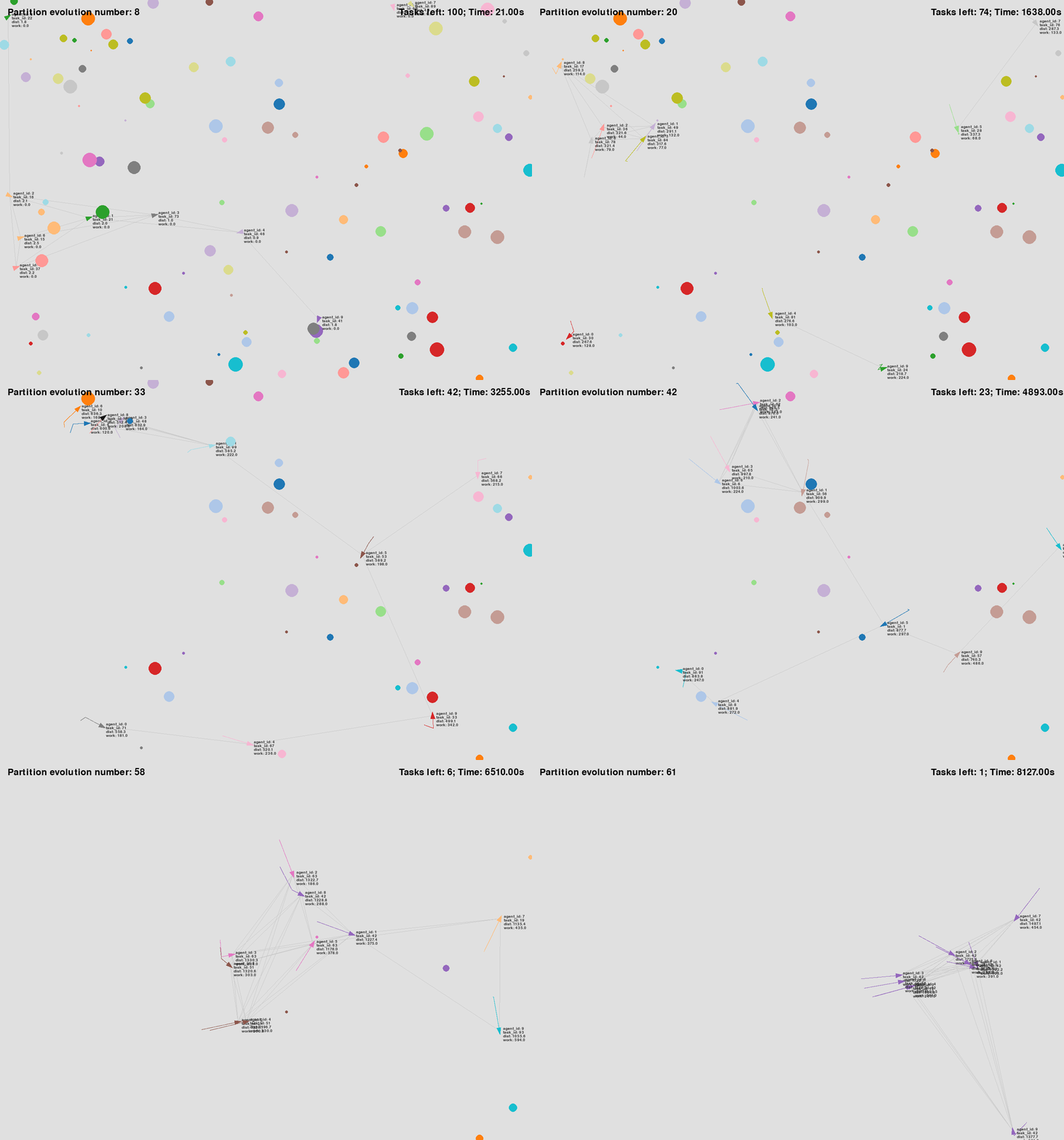
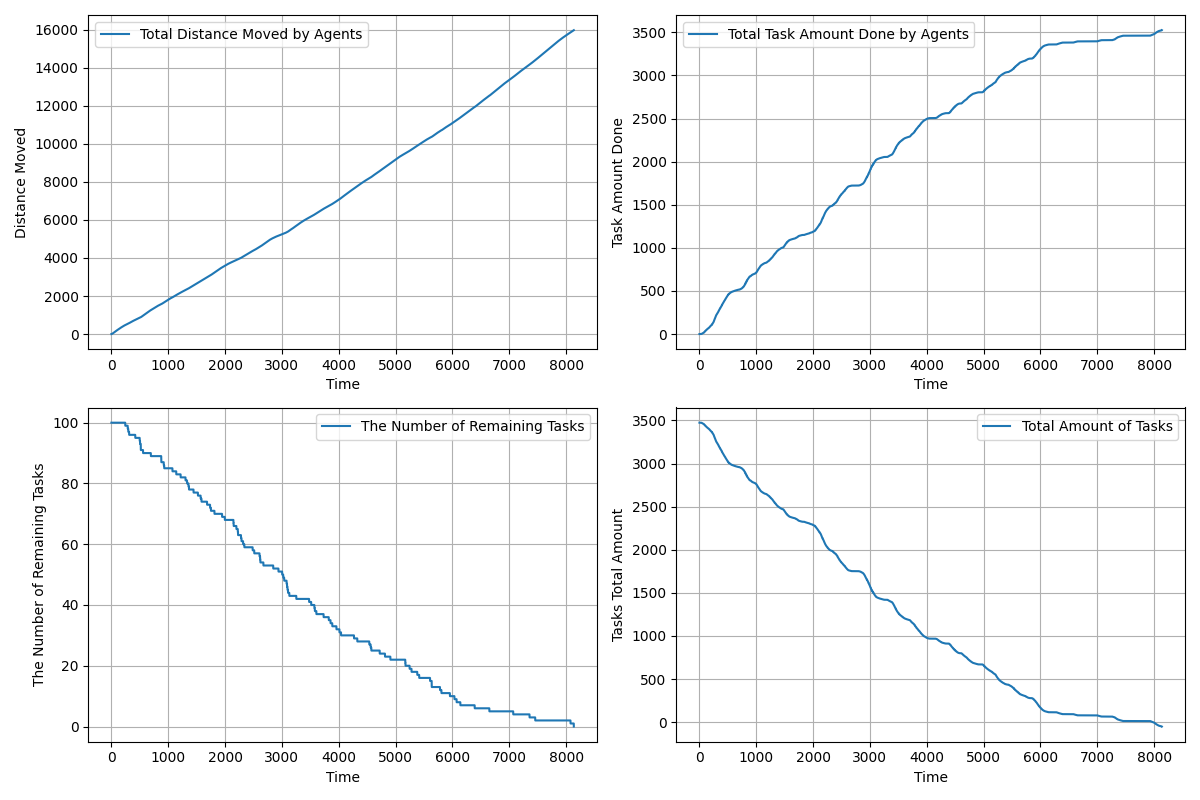
Then, you will see a simulation similar to the following. In the graph on the right, you can observe that, with no dynamic tasks, the number of remaining tasks starts at 100 and decreases over time without increasing.
|
|
See the configuration file used for the above simulation: config_grape.yaml.
With Dynamic Tasks
Now, let’s modify the configuration as follows:
tasks:
  quantity: 100
  ....
  dynamic_task_generation:
    enabled: True
    interval_seconds: 1000
    max_generations: 10
    tasks_per_generation: 10
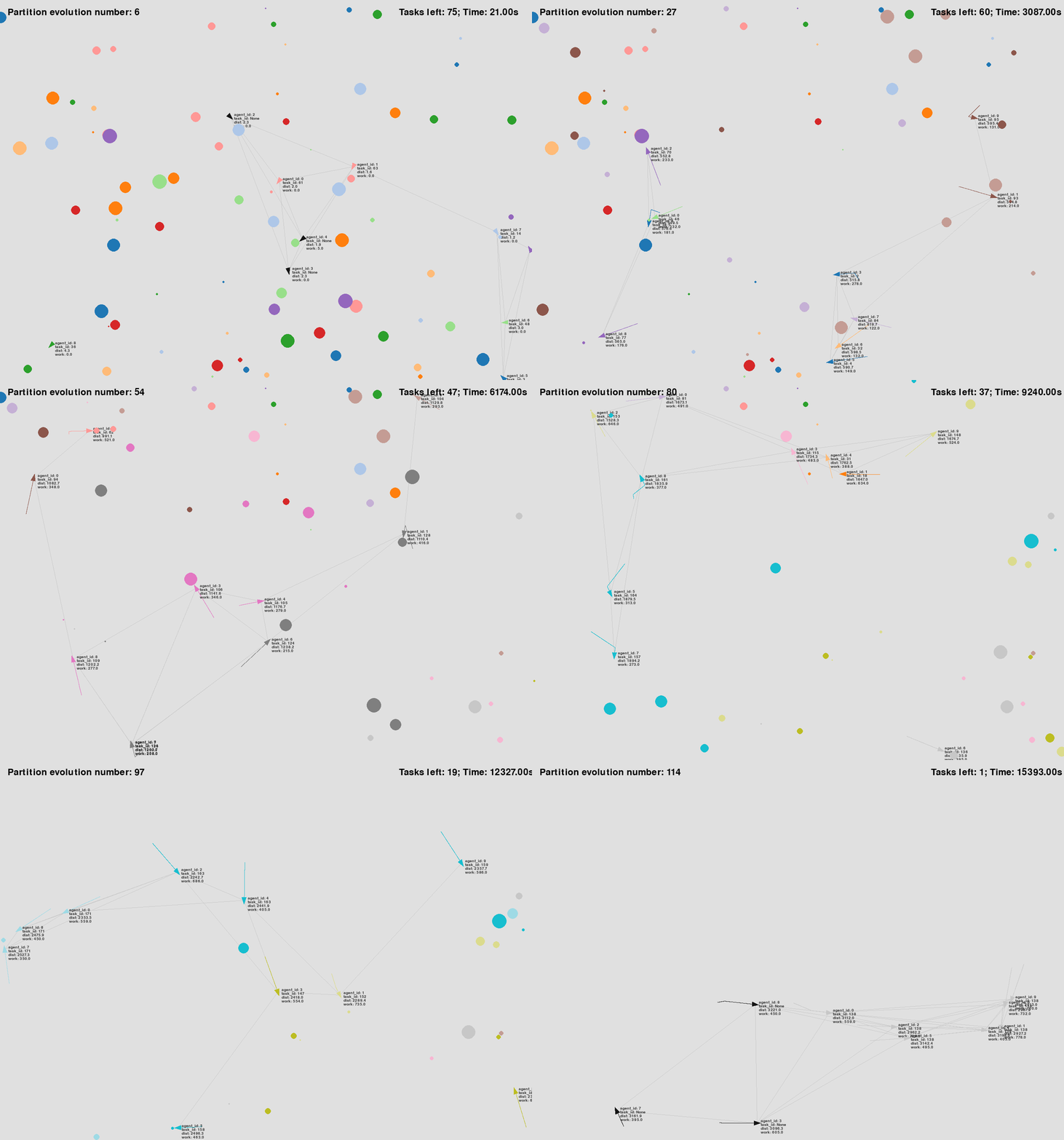
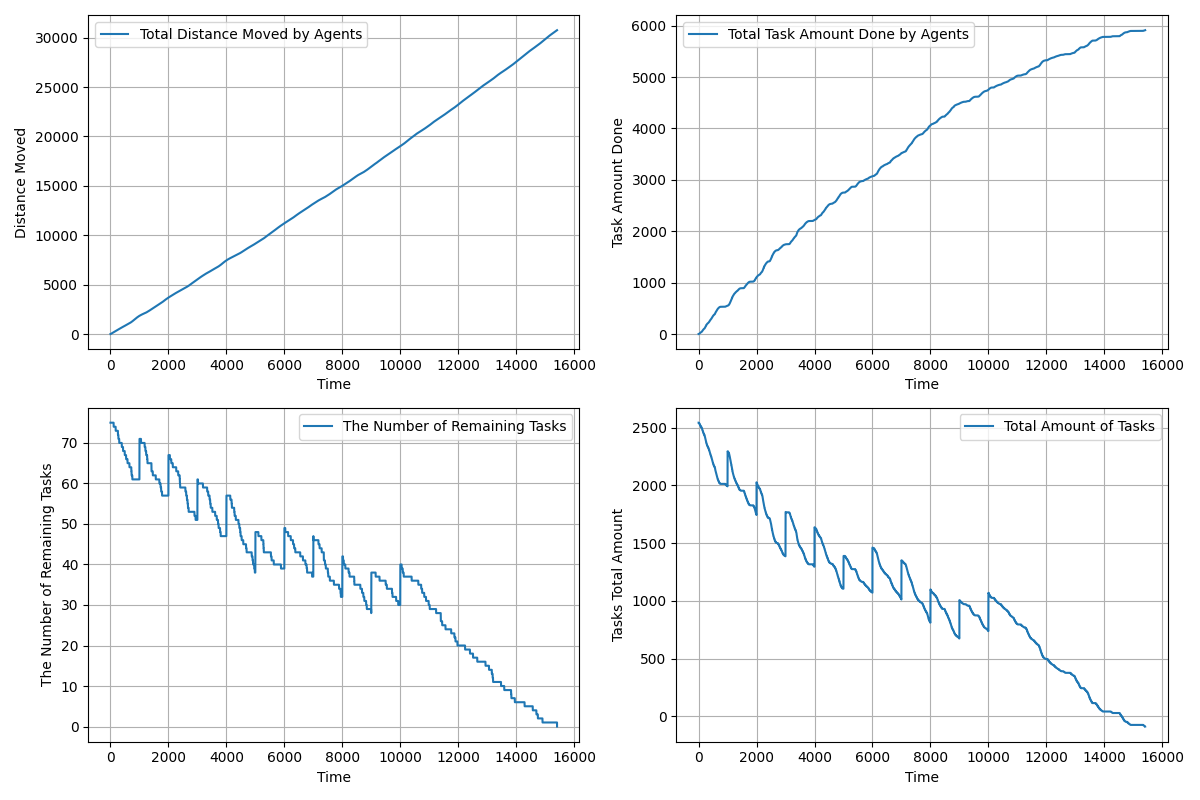
In this setup, the simulation starts with 75 tasks, and 10 new tasks are added every 1000 seconds, for a total of 10 generations. This results in a total of 175 tasks, but with a different task introduction scenario compared to before.
Run the simulation with these updated settings, and you will observe the following results:
|
|
Note
Since the number of initial tasks has been changed to 75, the results will be saved as GRAPE_a10_t75_{...}.csv.
See the configuration file used for the above simulation: config_grape.yaml.